InBody app setup for Dial: family profiles, Wi-Fi and guest mode, step by step
Set up the InBody app with your Dial: pairing, nicknames, home Wi-Fi, up to 20 people on H30 and H40, guest mode, and how to read your trends.
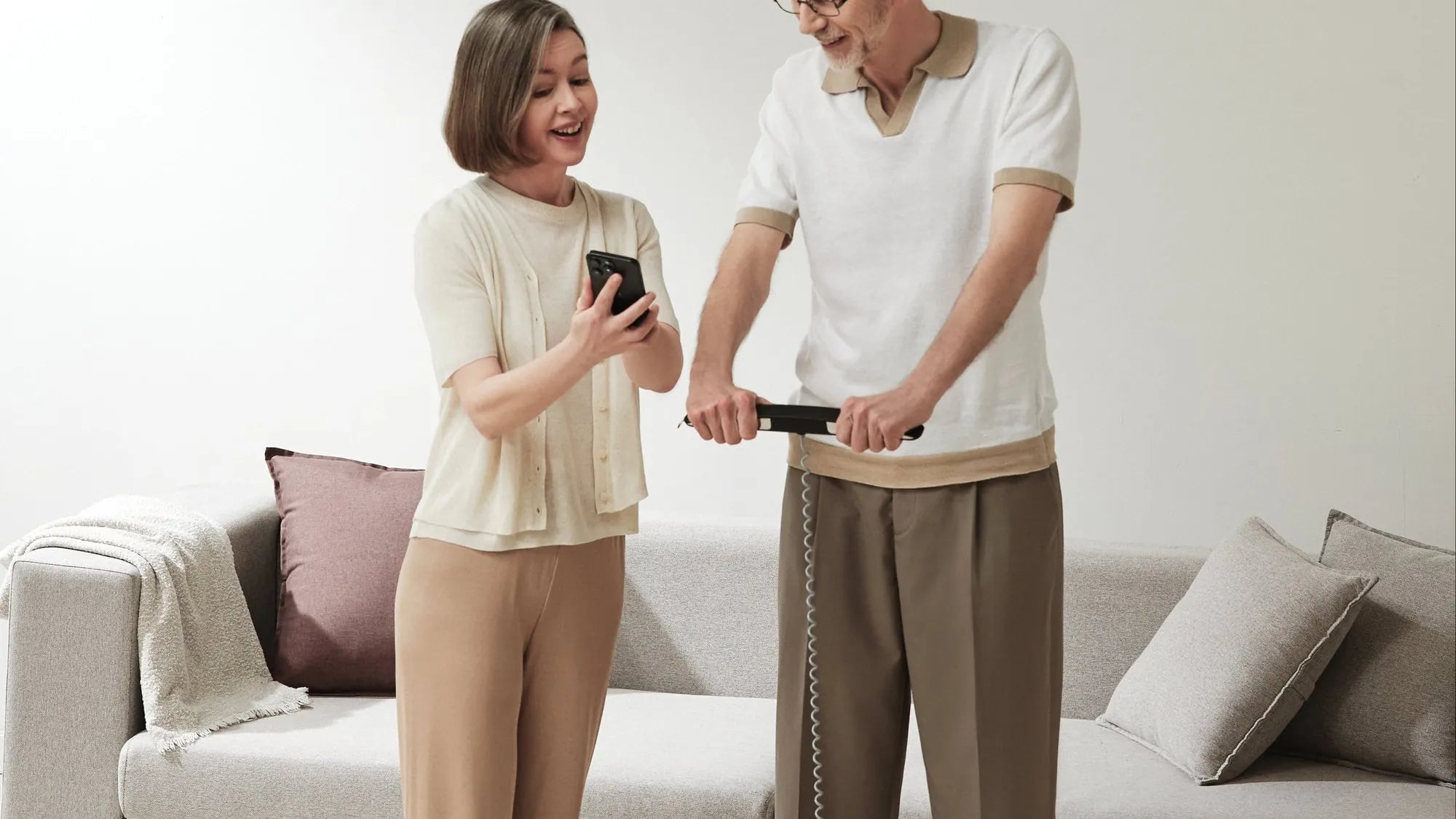
A Dial takes about ten minutes to set up, and most of that is waiting for batteries and Wi-Fi. Do it once, carefully, and the scale knows who stepped on for years afterwards. Rush it, and you end up with your mother’s readings on your graph.
This guide walks through the InBody app setup for Dial H20, H30 and H40: installing the app, pairing the scale, adding nicknames and family profiles, connecting Wi-Fi, guest mode, and what the app shows once results start arriving. Screens below are from the InBody app; menus can shift slightly between versions.
The short version
- Install the InBody app (iOS 15 or later, Android 8 or later), turn on Bluetooth, register, then add your Dial from the device menu.
- On Dial H30 and H40, give each person a nickname, connect home Wi-Fi, and start each person’s first test from the app. After that, the scale recognises up to 20 people on its own.
- Dial H20 is for one person over Bluetooth: set your height on the dial before each test and keep your phone nearby with the app open.
Before you start
You need the InBody app by InBody Co., Ltd., which works with all three Dials. Get it from the App Store or Google Play. Your phone needs iOS 15 or later, or Android 8 or later, with Bluetooth on. For Dial H30 or H40, keep your home Wi-Fi name and password handy.
Fit the four AA batteries from the box. Then choose the spot carefully, because the scale will live there. It needs a hard, level floor in a dry room: not on a carpet or rug, and not in the bathroom. Dial H30 and H40 are rated IP21, which covers drips, not steam or splashes. A bedroom or a corner of the living room usually works well.
Setting up, step by step
- Install and register. Open the InBody app, create your account, turn on Bluetooth and allow notifications.
- Switch the scale on. In the app, open the device menu, choose to register a device and pick your Dial from the list. The app asks you to confirm the scale is on.
- Name it. On Dial H30 and H40, enter a nickname. This is what appears on the scale’s screen when it recognises you, so keep it short.
- Connect Wi-Fi. Pick your home network and enter the password. You only do this once for the scale; others who join later do not need to repeat it.
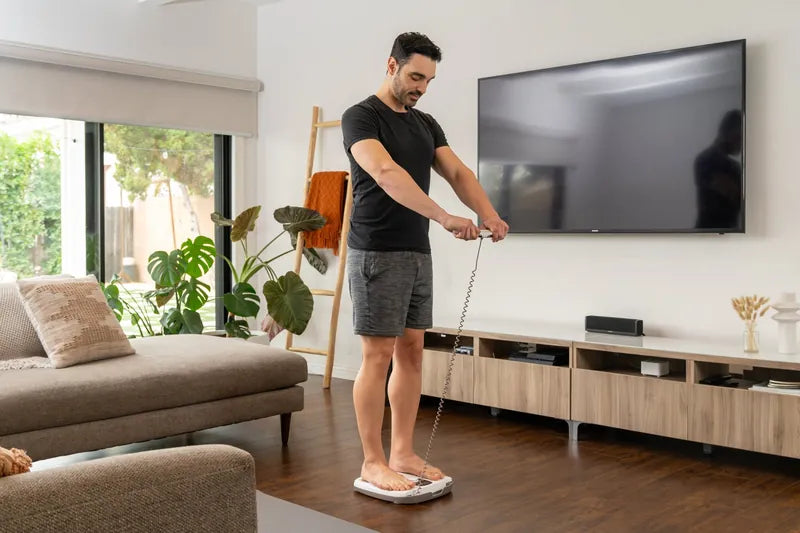
- Take your first test from the app. Tap Start Test, step on barefoot, lift the handle and hold still. This first test teaches the scale who you are.


Family profiles and InBody ID
Dial H30 and H40 recognise up to 20 people. InBody calls this InBody ID. When someone steps on, the scale matches their weight first, then their body’s own electrical signal, and files the test under the right name. The nickname shows on the screen for a few seconds, so you can switch if it picked the wrong person, which can happen when two family members weigh about the same.
To add a family member, create their profile in the app, give them a nickname, and start their first test from the app, just as you did for yourself. In the app, one main account can manage up to eight family members; the scale itself can recognise up to 20 people. Children can use Dial H30 from age 3 and Dial H40 from age 6, with an adult helping them hold the posture.

Guest mode
When a visitor wants to try it, use guest mode. Guests can test without saving anything, so nobody’s history picks up a stranger’s reading. It is the easy answer when relatives visit during the festivals and everyone wants a turn.
Dial H20 works differently
Dial H20 is built for one person. It does not recognise people automatically and has no Wi-Fi. Press the dial and set your height before each test, then step on with your phone nearby and the app open, and the result arrives over Bluetooth. If several people at home want to track, compare the models in Dial H20 vs H30 vs H40.
Wi-Fi, Bluetooth and the 15-result buffer
On Dial H30 and H40, Wi-Fi is what makes the family setup work. Once connected, every test reaches the app by itself, even if your phone is in another room. Bluetooth works too, when you are standing nearby with the app open.
Router restarts and monsoon power cuts happen. If Wi-Fi drops, the scale keeps up to 15 results per person and sends them all when the connection returns, so a weekend away from the router costs you nothing. Only after 15 stored results does the oldest get replaced. A Wi-Fi error on the screen does not mean the test was lost.

 Dial H30For the whole house. Recognises up to 20 people, guest mode, Wi-Fi sync, 12 readings.See Dial H30 →
Reading your results and trends
Each test lands in the app with every reading set against its standard range. The InBody Score sums up muscle against fat: 80 is the starting line, and it climbs as muscle goes up and fat comes down. Dial H30 and H40 also plot body type, your BMI against your body fat percentage, so a normal BMI with high body fat cannot hide.
The screen worth opening most often is History. It shows weight, skeletal muscle mass and body fat mass test by test, so you can see which of the three is actually moving. One reading can wobble with food, water and sleep. A few weeks of readings show the direction. This is the view to bring to a coach or a doctor, and the one that matters most when you are keeping an eye on muscle loss after 40.

A few more things live in the app. You can set goals to build muscle, lose fat or both. If you have an InBody result sheet from a gym or clinic, scanning its QR code can add it to your timeline, though some models and facilities may not support this. Body composition can also sync to Apple Health on iPhone, and to Health Connect and Samsung Health on Android.
Getting clean, repeatable readings
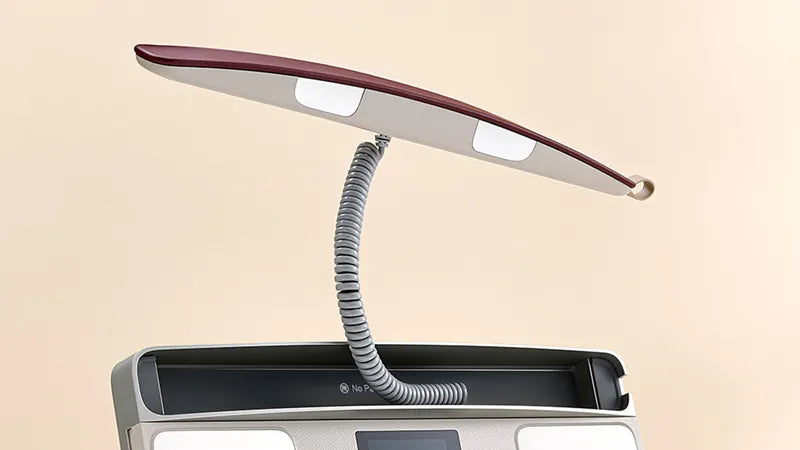
The app can only show a useful trend if the tests are taken the same way. Test in the morning, after the toilet and before food, exercise or a shower. Stand barefoot with your heels on the rear electrodes, lift the handle to pelvis height, arms straight and away from your body, thumbs on the thumb electrodes. Hold still until the result appears: about 20 seconds on H30 and H40, about 10 on H20.
Two more cautions. InBody advises that anyone with a pacemaker or other implanted electronic medical device should not use a Dial, and that pregnant women check with their doctor first. And it is a fitness and wellness tracking device: for anything about your health, talk to your doctor and take your trend along.
Questions people ask
Which app does InBody Dial use?
The InBody app by InBody Co., Ltd., on the App Store and Google Play. It works with Dial H20, H30 and H40 and needs iOS 15 or later, or Android 8 or later.
How many people can use one Dial?
Dial H30 and H40 recognise up to 20 people, and visitors can test in guest mode without saving anything. Dial H20 is designed for one person, with height set on the dial before each test.
Do I need my phone near the scale?
Not with Dial H30 or H40 once they are on Wi-Fi. Results reach the app even when your phone is in another room. Dial H20 uses Bluetooth, so keep your phone nearby with the app open.
The scale showed the wrong name. What do I do?
The nickname stays on the screen for a few seconds so you can switch to the right person. It happens most often when two people weigh about the same, so check the name each time for the first few weeks.
Our Wi-Fi went down. Did we lose results?
No. Dial H30 and H40 keep up to 15 results per person on the scale and send them when Wi-Fi is back. After 15, the oldest is replaced.
Sources
- InBody app listing, InBody Co., Ltd. App Store (id884923678) and Google Play (com.inbody2014.inbody).
- InBody Dial H20, H30 and H40 specifications and setup guide, InBody India.
 Dial H40
 Dial H30
 Dial H20